


Dive into the intricate workings of Azure Stack HCI’s security baseline settings. In this article, we shed light on its association with the Azure Stack HCI cluster, the underlying drift control mechanism, and how to manage the baseline effectively.
Azure Stack HCI, right off the bat, is robust in its security features. With over 200 security settings already activated, it guarantees a consistent security baseline, making sure devices consistently boot up in a recognized secure state.
Preview Alert: This feature is in preview. Refer to Azure’s Supplemental Terms of Use for previews and beta features.
Security Baseline Benefits:
The Azure Stack HCI security baseline offers the following advantages:
- Alignment with Center for Internet Security (CIS) benchmarks and Defense Information System Agency (DISA) Security Technical Implementation Guide (STIG) standards for both the operating system (OS) and Microsoft’s recommended security baseline.
- Cost savings through built-in drift protection and continuous, scalable monitoring via the Azure Arc Hybrid Edge baseline, reducing operating expenses (OPEX).
- Enhanced security posture by deactivating outdated protocols and ciphers.
About the Security Baseline and Drift Control in Active Directory for Azure Stack HCI:
When you set up Active Directory for Azure Stack HCI and establish a dedicated organizational unit (OU), certain default group policies and Group Policy Object (GPO) inheritance are automatically blocked. This blocking mechanism is in place to prevent conflicts in security configurations.
The deployment of the Azure Stack HCI Supplemental Package then introduces and maintains the following components:
- A new built-in configuration management stack within the operating system.
- A predefined security baseline.
- Secured-core settings tailored for your cluster’s security.
You have the ability to monitor and implement drift protection for this default security baseline and secured-core settings during both the deployment phase and the runtime of your system. Additionally, you can choose to disable drift protection while configuring the security settings during the initial deployment.
With drift protection enabled, the security settings are regularly refreshed at 90-minute intervals. This refresh cycle aligns with the timing of group policy updates, ensuring that any deviations from the desired security state are promptly corrected. This continuous monitoring and automatic remediation mechanism provides you with a consistent and dependable security posture throughout the entire lifecycle of your device.
Customize Drift Control:
To tailor your security hardening to meet specific requirements, it’s advisable to maintain a well-balanced security stance. Begin by utilizing the initial security baseline, pause the drift control, and make necessary adjustments to any of the safeguarded security configurations defined during the deployment.
To enable or disable drift control, follow these instructions:
- Connect to your Azure Stack HCI node using the Remote Desktop Protocol.
- Run the following PowerShell command as an Administrator:
Get-Command -Module AzureStackOSConfigAgent -Name *Security
- The search results will display commands for enabling, disabling, and retrieving information about various security features. These features include:
- Credential Guard
- Drift Control
- DRTM (Device Root of Trust Measurement)
- HVCI (Hypervisor-protected Code Integrity)
- Side Channel Mitigation
- SMB Encryption
- SMB Signing
4. If you are working with a multi-node cluster, make sure to execute these commands on all nodes within your cluster.
Crucial Note: When drift control is active, the exclusive method for altering security baseline settings is through the use of PowerShell cmdlets.
Please refrain from making adjustments to the protected security settings using alternative methods such as manual editing via the Registry editor, SecEdit (including local policies), System Center Configuration Manager, Desired State Configuration (DSC), or any third-party tools. Changes made through these avenues will only be temporary, as they will be overridden when the drift protection is triggered every 90 minutes.
Administering the Security Baseline:
While deploying your cluster through the Supplemental Package, you have the flexibility to adjust not only drift control settings but also other security configurations that collectively form the security baseline. Any modifications you apply to these security settings will also be mirrored in the config.json file generated during the deployment process.
Configure security during deployment
The following table describes the security settings that can be configured on your Azure Stack HCI cluster during deployment.

Adjusting Security Post-Deployment
Following the deployment’s conclusion, you have the flexibility to adjust specific security features while preserving drift control. Below is a comprehensive reference table detailing the commands for modifying these security features. Please be aware that certain features might necessitate a system reboot to become active.
Enable and disable commands
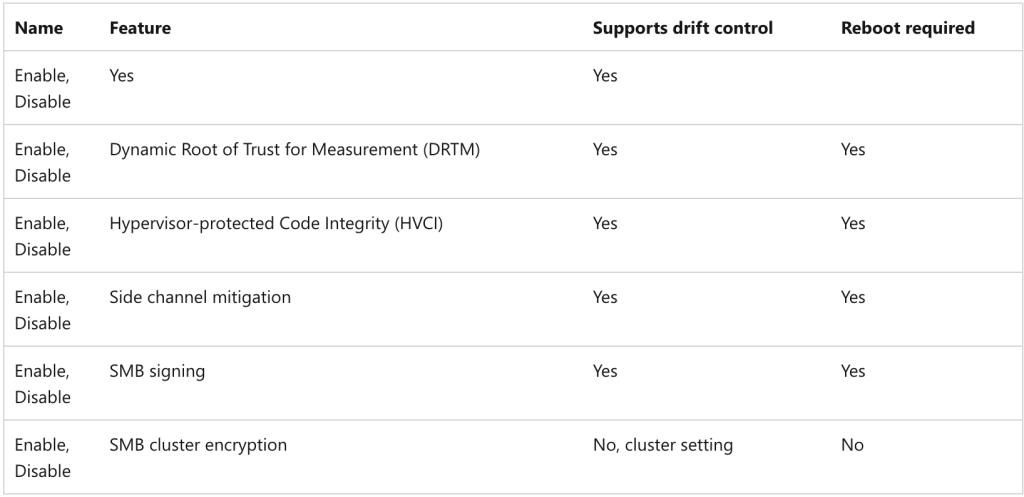
For a deeper understanding and to view all settings, remember: with drift protection activated, you should only adjust the non-protected security settings. Should there be a need to modify the foundational security settings, you must first deactivate the drift protection. For a comprehensive list of security settings, visit: aka.ms/hci-securitybase.
Conclusion: Thank you for delving into the security nuances of Azure Stack HCI with us. It’s paramount to uphold stringent security measures in today’s digital realm. Curious about related topics? Click here to navigate through our related blog entries. Stay secure and stay informed!